How to Make Personal Library Book Stickers with the Munbyn RealWriter 401 AirPrint Thermal Printer

This article is sponsored by Munbyn. I received a complimentary Munbyn RealWriter 401 AirPrint Thermal Printer to facilitate this article. However, the views and opinions expressed are entirely my own. You can read my full disclosure here.
Did you know that you can do more with the Munbyn AirPrint Thermal Printer than just make Shipping Labels?

Recently, Munbyn reached out to me to test their innovative Munbyn RealWriter 401 AirPrint thermal label printer, and I was intrigued by its potential for crafting endeavors. They generously provided me with various label rolls to explore its capabilities and I can't tell you how excited I was to do so.
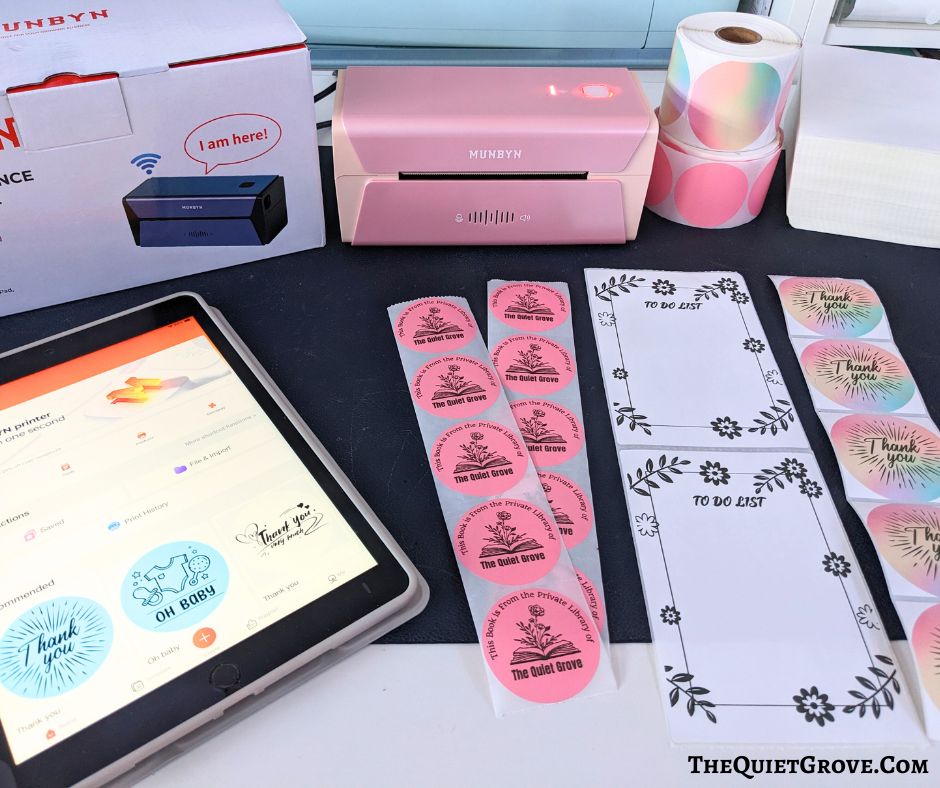
As someone who sells on Etsy, I was already in search of a reliable thermal printer to streamline my shipping label process. However, when I learned that the Munbyn RealWriter 401 can also accommodate different sticker shapes and sizes, my excitement skyrocketed with the potential applications. What's more, Munbyn provides a wide selection of sticker label rolls, ranging from standard rectangles and circles thermal sticker labels to imaginative-shaped personalized sticker labels, truly catering to a variety of project needs.

I love how this AirPrint label printer's flexibility extends far beyond business needs. You can effortlessly print custom thank-you stickers for packaging, organize your home with personalized labels, or add a creative touch to events like birthday parties.
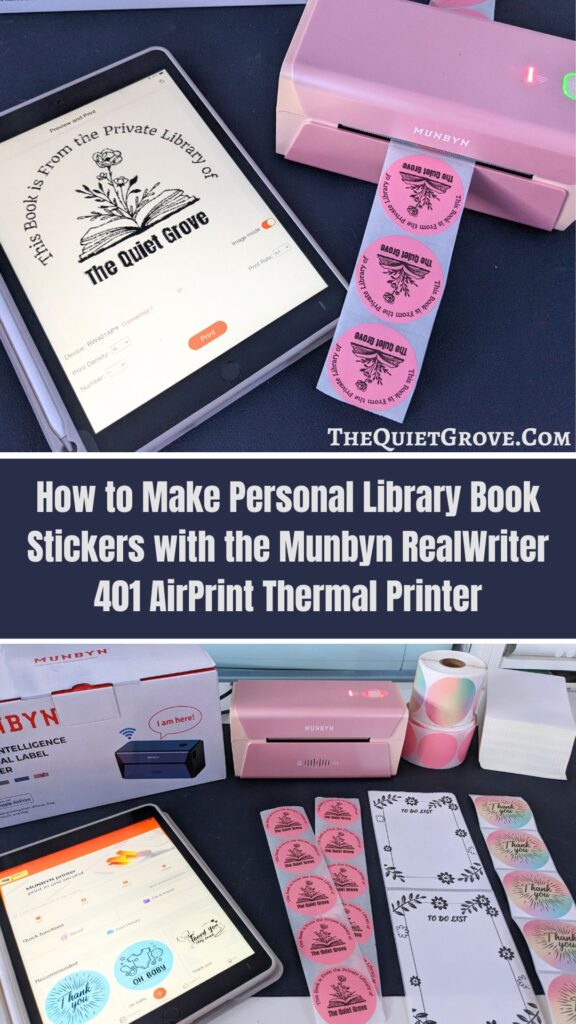
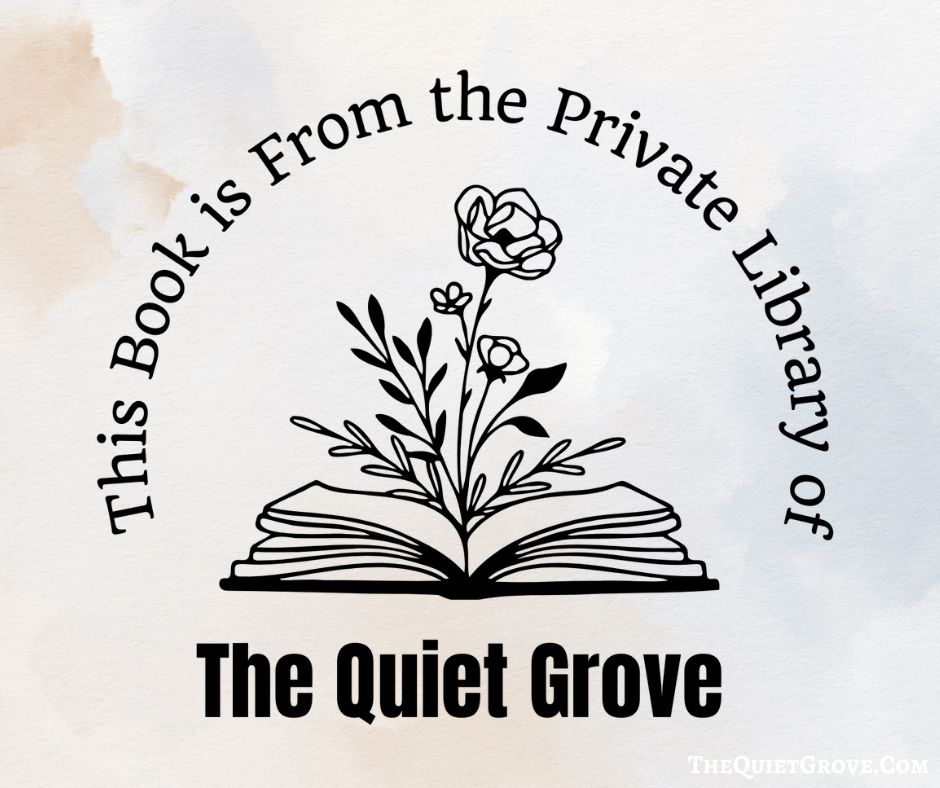
Today, I'm excited to share how you can leverage the Munbyn RealWriter 401 AirPrint Thermal Printer to craft 2" circle custom book stickers for your personal library.
DIY Book Sticker Labels

This DIY tutorial is for making DIY Personal Library Book Stickers using Canva as well as the Munbyn RealWriter 401 AirPrint Thermal Printer. If you use the PNG Design rather than the Canvas Template you can skip the Canva part of the Instructions.
Materials
Tools
Instructions
Download the Free Book Sticker PNG/Canvas Template HERE*
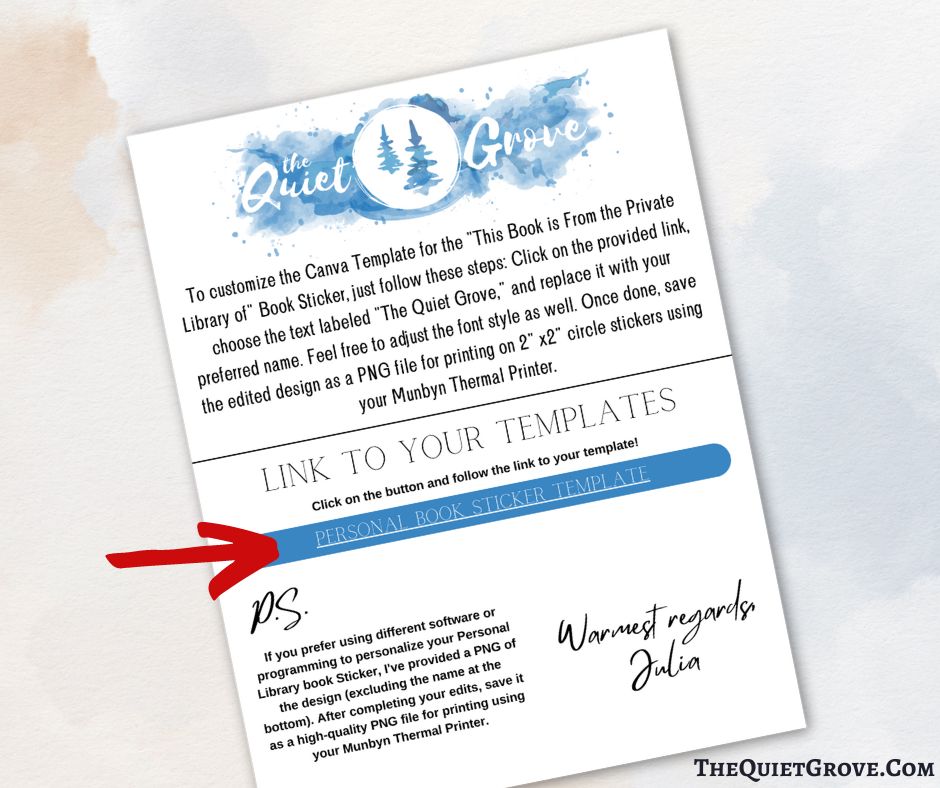
Click on the link in the PDF file to access the Canva Design Template
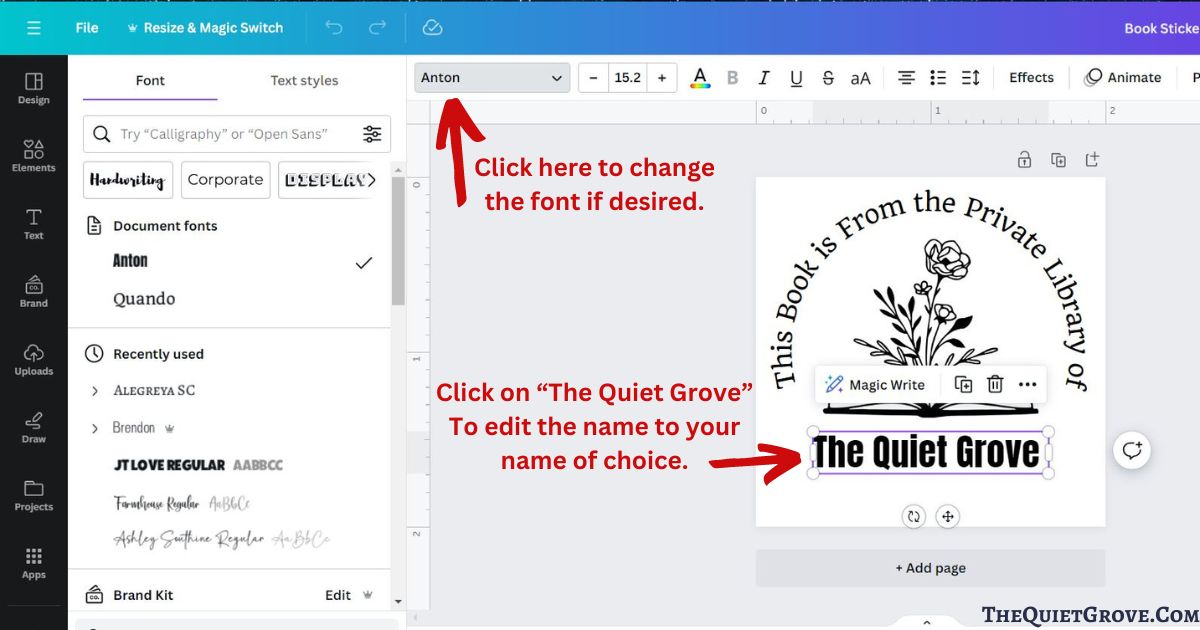
Click on "The Quiet Grove" text to edit to your Name (You can change the font as well if you desire,)
Click on the upload button on the top right-hand of the screen, then select to print. (Make sure to print as a PNG and do not select the Transparent background button.)

On the Munbyn App (on your phone or tablet) Select the Files & Import Button (has a purple folder image)
Select the Book Sticker Design.
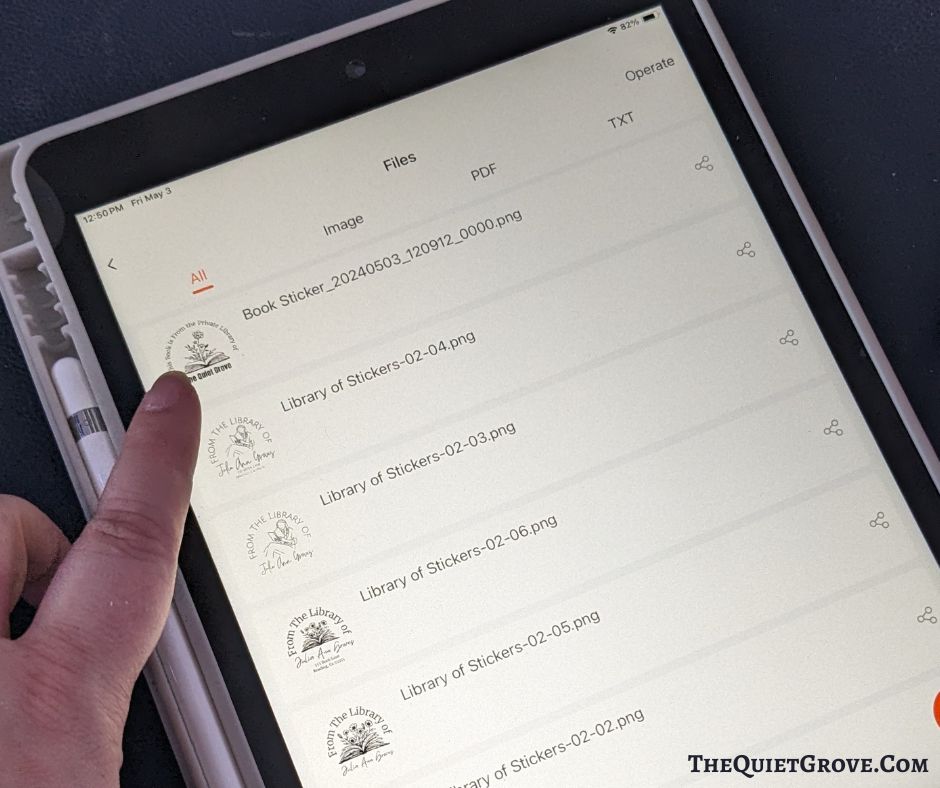
Select the Preview and Print Button at the bottom of the Screen.
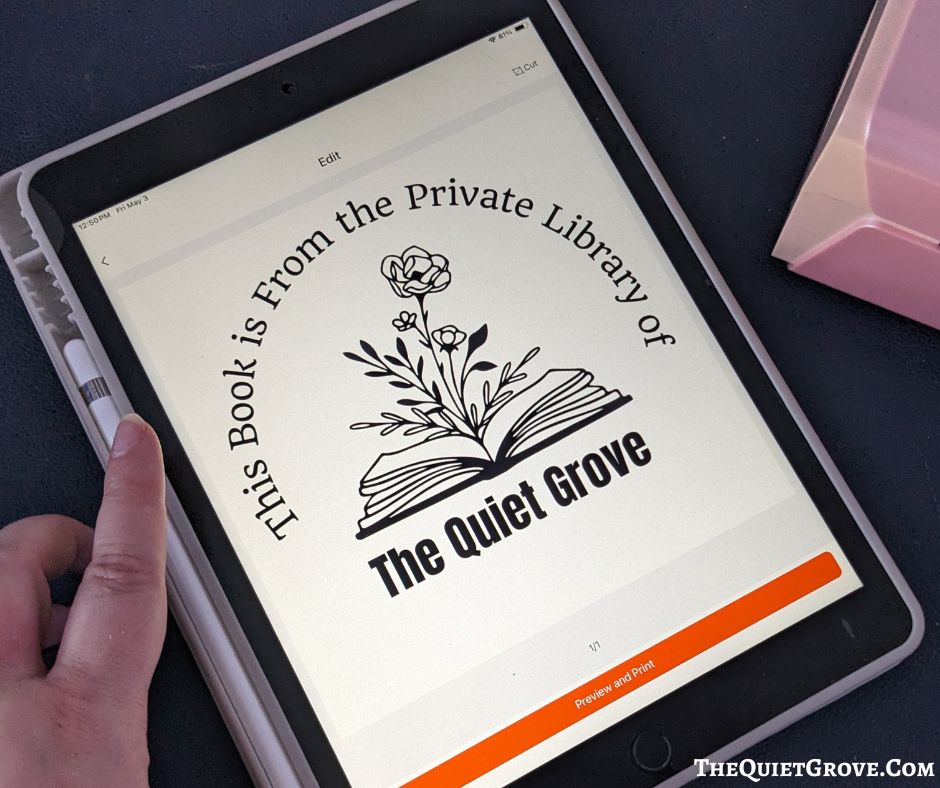
Choose Paper Size - Gap / 51x51mm (2"x2")

Open the Munbyn Printer (using the button on the side) and load the 2" Sticker roll into the Printer. (You will need to adjust the feed tabs to fit the size of the sticker labels.)

Make sure the Printer is connected then print. (I usually print 1-2 first to make sure it is printing properly on the sticker label. sometimes it is off for the first print or two then it lines up)
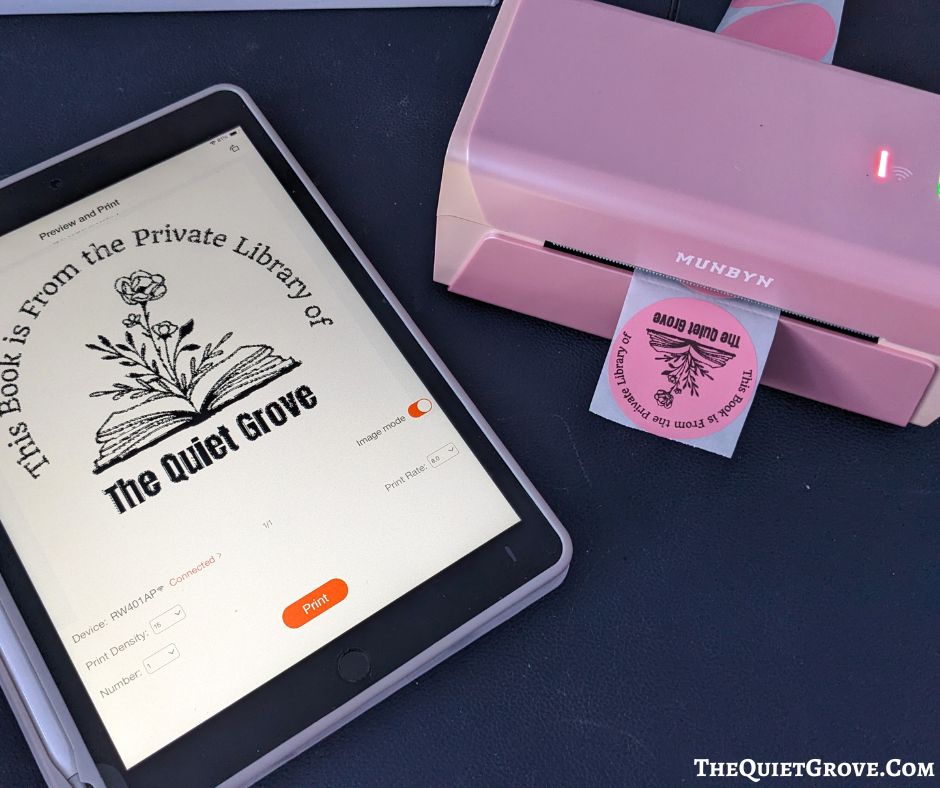
Once I get a printed sticker exactly as I desire I will edit the amount and print the desired # of Books stickers. 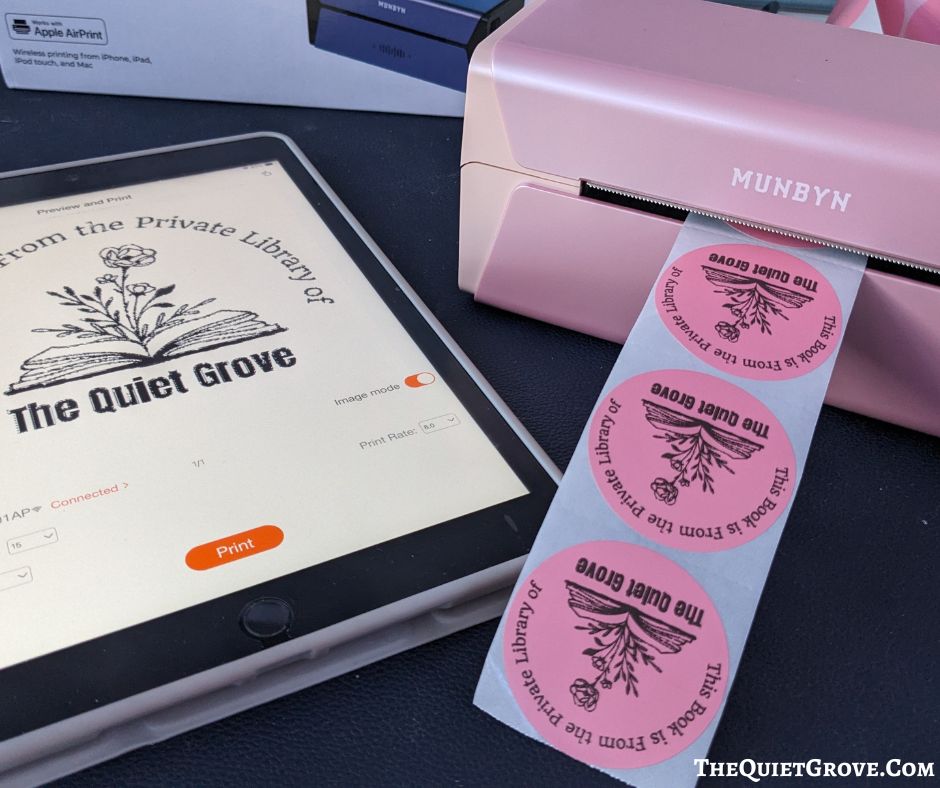
Tear off the printed stickers by pulling up. 
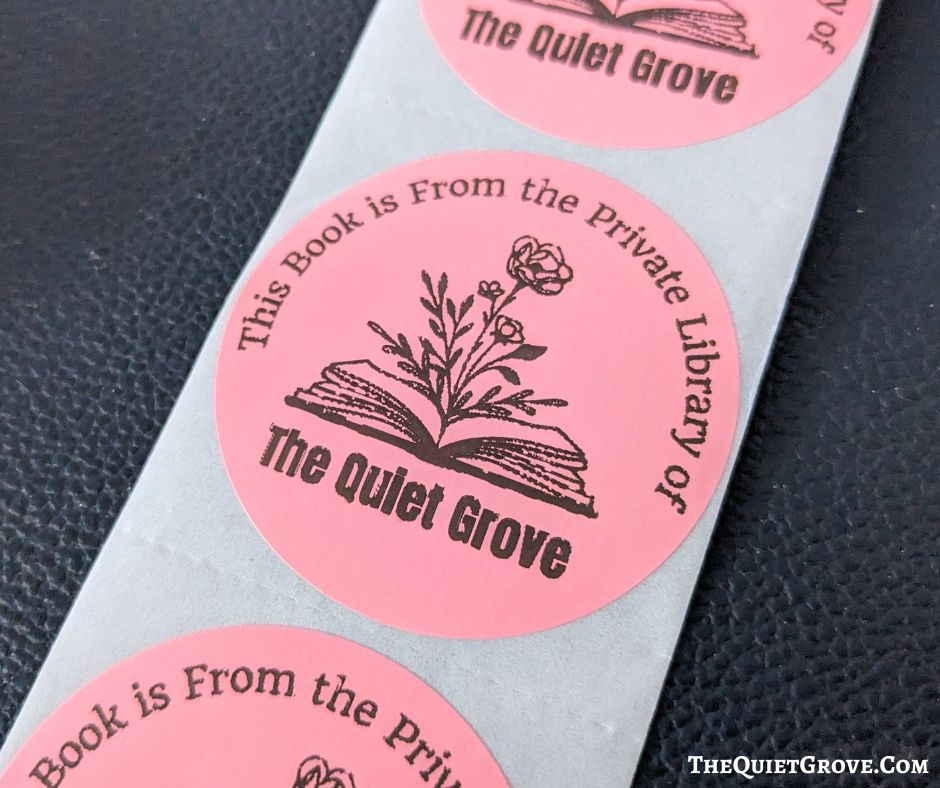
Enjoy!
Notes
* This download comes as a Compressed RAR file containing both a PDF with the Free Canva Design Template & Instructions to Edit on Canva as well as a PNG file allowing you to edit with your own software. You will need to use a standard WinZip Program (which is free online if you don't already have it) to open the compressed file and extract the files to use.
Recommended Products
As an Amazon Associate and member of other affiliate programs, I earn from qualifying purchases.


As you can see, creating these stickers is a breeze with the Munbyn RealWriter 401's 300dpi resolution, ensuring crisp and clear labels.

Whether you're printing petite stickers or larger 4x6 labels, this printer handles each task effortlessly. Its WiFi connectivity distinguishes it, enabling printing from anywhere within range, eliminating the need for USB or Bluetooth connections.

With AirPrint driverless printing, setup becomes a breeze, and you can conveniently design and print directly from your phone or tablet using the app. There are QR codes in the user manual as well as printed on the box to send you to the app store (for both iOS and Android) where you can download the App for your phone or tablet.

Once you download the app, you will be sent through a step-by-step tutorial for connecting your device and then using the app.

In addition to uploading designs to print out using the app on your tablet or phone, you can access a variety of premade design templates that you can use as is or easily customize before printing.

I used this fun Thank You sticker as is with these beautiful rainbow scalloped edged sticker labels and I love how they turned out.
.
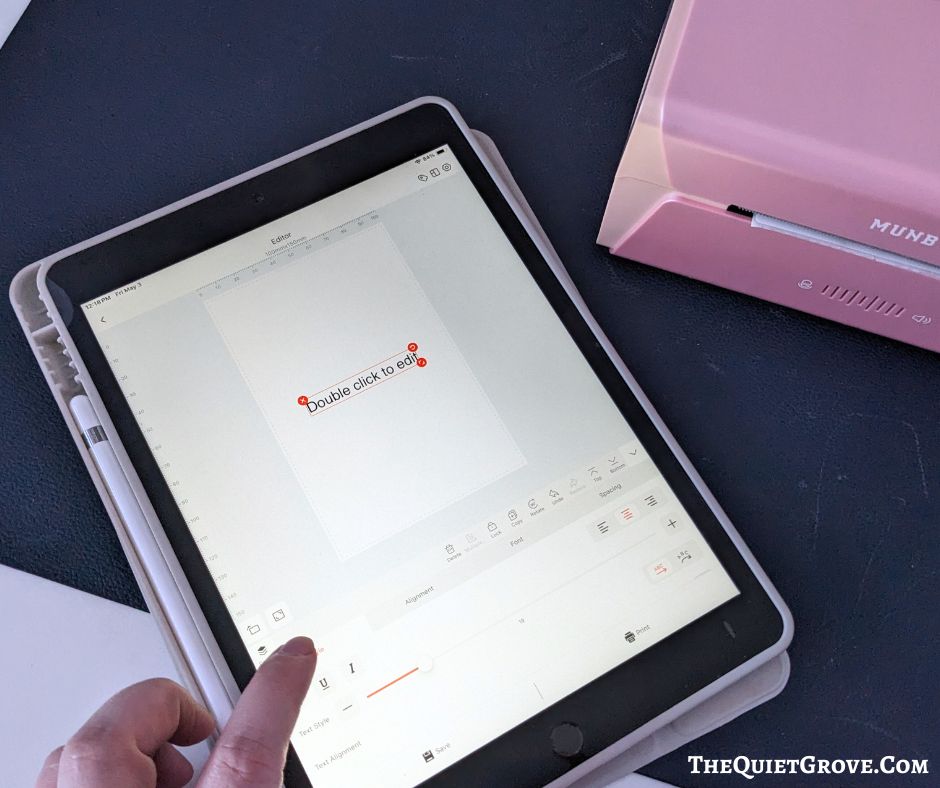
You can also click to create your custom sticker labeled within the app itself.

If you prefer printing via desktop or laptop computer, don't worry you can do that as well. The Munbyn RealWriter 401 printer includes a USB flash drive with the necessary drivers for installation

It also comes with a long USB cord for connecting to your computer. This versatility makes it compatible with Mac and Windows computers, as well as tablets and cell phones.
With a printing speed of 150mm/s, you can produce labels swiftly, up to one label per second. And here's the kicker: no ink or toner is required, saving you costs in the long run. Despite its powerful features, the Munbyn RealWriter 401 remains super compact, making it a space-saving addition to any craft room or office.

I was impressed by how effortlessly I could create these custom book stickers and how quickly I could print them with the Munbyn RealWriter 401 AirPrint Thermal Printer. Its compact size ensures it won't clutter your workspace, while its versatility opens up endless creative possibilities.