
DIY Dinosaur Library Book Bag (Made with Cricut Iron On)


Carry your library books in style with this fun dinosaur library book bag.

My kids love going to the Library to find new books to borrow. They get it naturally, I am totally a bookaholic. However, with 3 kids, plus my husband and I, the number of books (and DVDs) is increasing. Which means harder to just carry out in my arms. This is why I decided it was high time we needed to get a library book bag. I decided to buy a canvas bag and then use Cricut Iron On to make a Dinosaur library book bag.

Thinking of my kids and their interests I decided to go with a dinosaur theme. I am so excited with how the bag turned out. For those wanting to make this bag I have written step by step instructions below.
Dinosaur Library Bag

Make your own fun Dinosaur library Bookbag using Cricut Iron-on.
Materials
- Every Day Iron-on (Black)
- Glitter Iron-on Green
- Canvas Bags (I got mine in a 3 pk at Hobby Lobby)
Tools
Instructions
Click here to Access the Design Space CanvasI have the design all ready to go. So unless you need to resize it just click the "Make It" Button.

Check the box to mirror the image for each cutting sheet.

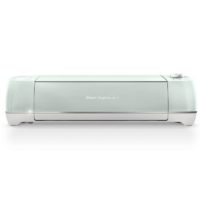
Set the dial on your Cricut Explore Air cutting machine on the Iron On Setting.

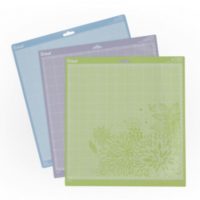
When placing the Iron-on onto the cutting mat make sure the shiny side is faced down.

For the Glitter Iron-on design set the dial to custom and select Glitter Iron-on from the custom materials list on your computer.
Place the Iron-on shy side to the mat and cut.
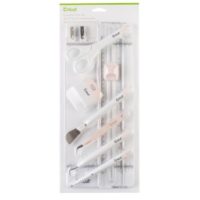
after cutting all the Iron-on, use the weeding tol from the Essential tool kit to weed the designs.

Carefully place the Iron on, onto the canvas bag to preheat for 15 seconds then place your design on the bag

If using an Iron as I did, you will need to put the setting on the iron as high as possible. You will also need a thin towel or freezer paper between the Iron and the Iron on. Iron on (Heat Transfer Vinyl) need heat to adhere to the fabric. Because irons do not have uniform heating, you will need to add pressure and have patience as you work to get the Iron on to fully adhere to the canvas bag. This isn't an issue with Cricut's new Easy Press (which is why I can't wait to get my hands on one for it will make working with Iron-on extremely easy.)

**When creating a project that deals with multiple colors you will need to do one color at a time. If you are layering Iron-on any specialty Iron-on (like glitter Iron-on)
You know you are done when the clear backing peels easily off the Iron On and fabric.

Notes
I originally did this project with a regular household iron. (since it was made right as the Easypress was released and at the time I didn't have one yet.) However, you will get better results using an Easypress so here are the Easypress instructions:
Easypress Instructions:
Follow the instructions found on the Cricut Easypress Settings page --> HERE <--
Preheat EasyPress 2 at 270°
Press the Canvas bag for 5 seconds to heat up
Place the Glitter Dinosaur on the bag
**To know where to place the dinosaur you can place the words upside down (aka backing side down on the bag then after placing the dino design where you want it, lift up the words.)
Don't peel the backing off the dinosaur yet
Press firmly for 30 Seconds then flip over bag and press the backside for 15 seconds.
Next change the heat setting on Easypress to 340°
Place the everyday Iron-on words where you want them on the canvas bag.
Press for 30 seconds and flip over to press the back for 15 seconds.
Let bag and iron-on fully cool then peel off Iron-on backing.
Recommended Products
As an Amazon Associate and member of other affiliate programs, I earn from qualifying purchases.


I love how this library book bag turned out and my kids LOVED it! Just the right balance of funny and cute. Now my kids are asking me to customize their backpacks.

If you liked this Cricut DIY post then check these out: (Click on the photo to go to the post)



Hi Julia! What a cute project! Do you have a file that is available for commercial use, by any chance? Thanks so much!
Super cute project! It was saved as private in Design Space so I can't access it though.
Sorry, It wasn't a private Design Space Canvas. But when Cricut shifted from cloud to Desktop some of the Canvas links stopped working. I have updated the post with a new link that will work for you.