
How to Upload Your Own Images Into Cricut Design Space!

Did you know you can upload Your Own images into Cricut Design Space?
When the first Cricut came out they were sold with cartridges each with specific designs, fonts and images to make designs with. As quality as those designs were and still are, many waited with anticipation for the day that you could use your own designs and images. That day came with the release of the Cricut Explore Series of Crafting Machines and the launch of Cricut's Design Space. Now you can use those amazing designs that you find online (from crafty bloggers like me) designs you create yourself, as well as images you find online.
Not only can you upload custom images and designs, but Cricut makes it easy to do so. (at no additional cost). For those who have been hesitant to upload custom images because they weren't sure how to do so let me walk you through it so you can see how easy it is.
After opening a new canvas in Design Space, then the first step is to click the Upload Image button on the Left-hand tool-bar.

Next click on the Upload Image Button in the Image library. You can Upload SVG, PNG, JPG, GIF, BMP, or DXF files. However, SVG files are the BEST for cut files (because they are already formatted as cut files to use on cutting machines so you don't have to edit or modify these files to use.) When you upload an SVG file design space will recognize the file is ready to go so it will automatically add the file to your library. You don't have to do anything else (though you can title the image and put in tags for easier finding later on)
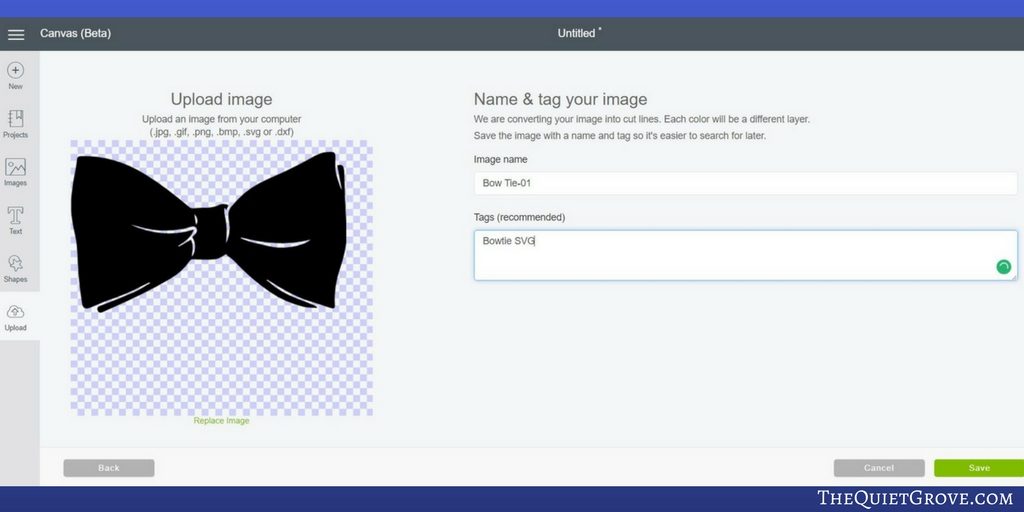
PNG's with a clear background are the BEST for print and cut designs. When you upload any file (that is not an SVG) into Design space you will have more steps since the program will assume it is for a print and cut file.
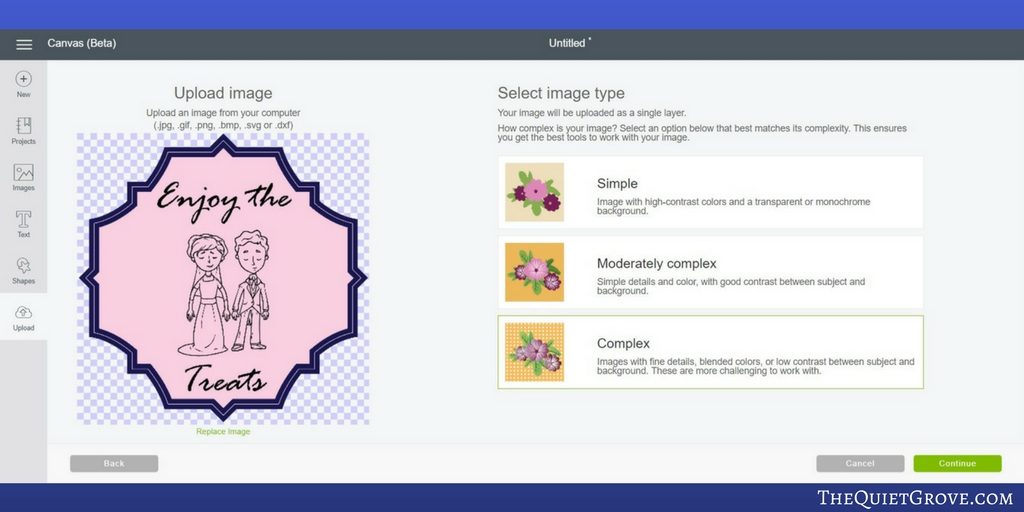
- It will ask you which level of detail you want. If the image you are uploading is for a cut file then simple can work. If you want to use it as a print and cut file then go with complex.
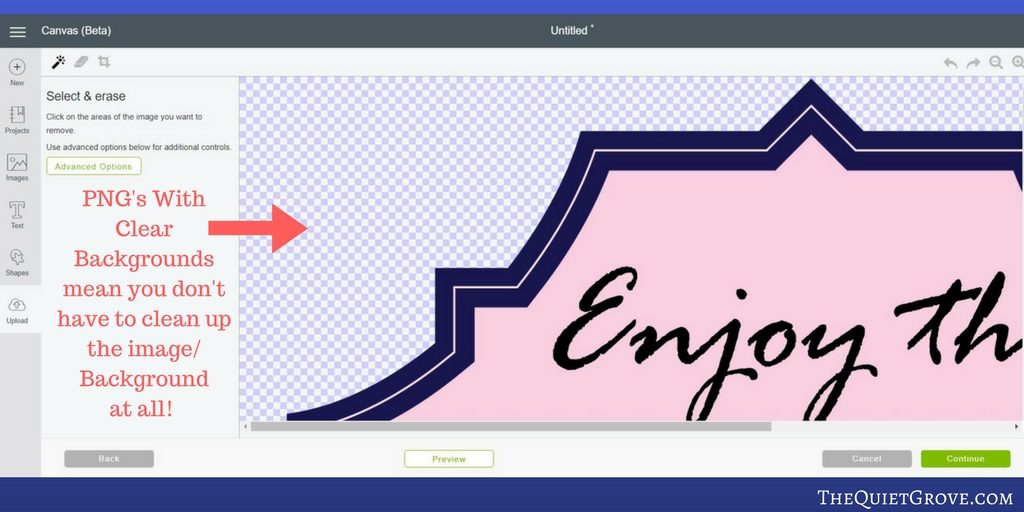
- Next, you will need to erase the background (everything left design space will assume is part of the final design. this is why having a clear background png is the best. Since you won't have to erase anything and well PNG's are better clearer images for quality)
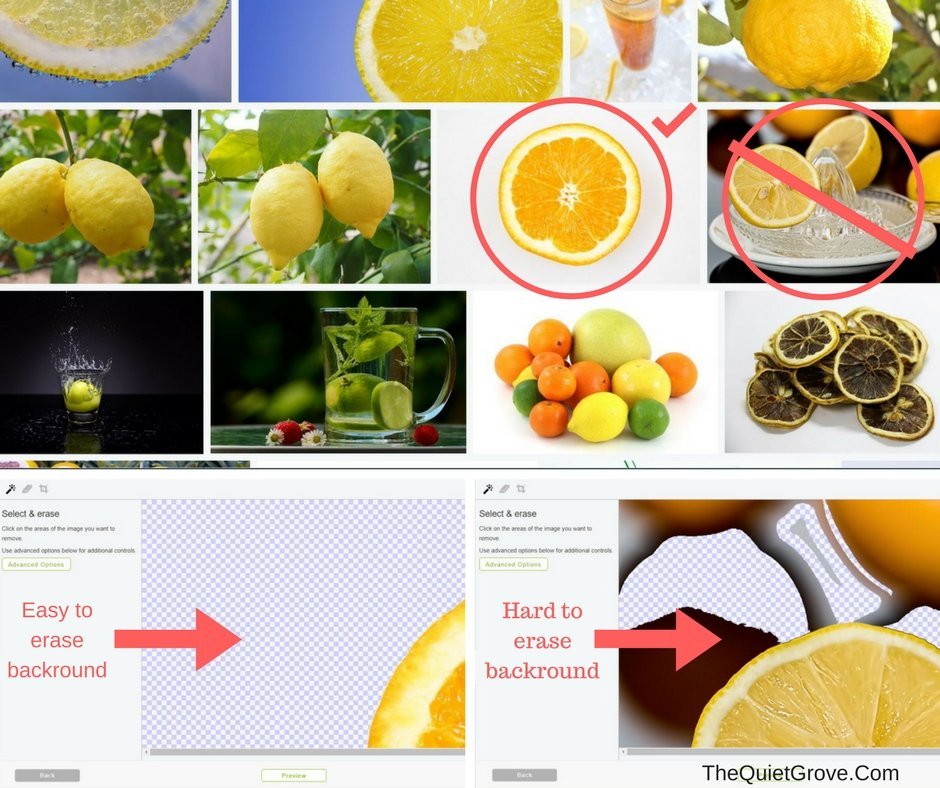
**If you have an image that needs to have the background erased then try to use an image that has a simple high contrast background so you can erase the background easier. **
- Choose whether you want this image to be saved as a print and cut image or cut file (cut files follow the outside outline of your image. Print and cut will have the whole design to be printed out before after which the circuit will cut the outside border.)
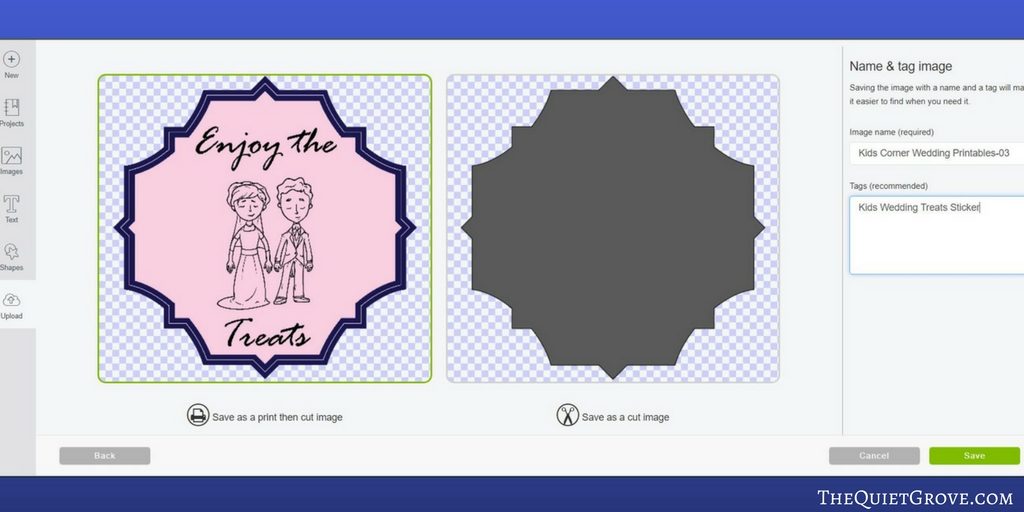
After you hit Save your Image will then be saved in your Design Space Library. At this point, all you have to do is click on your image to select it and then click on the insert image button on the bottom right corner of the image library screen to add it to your canvas!
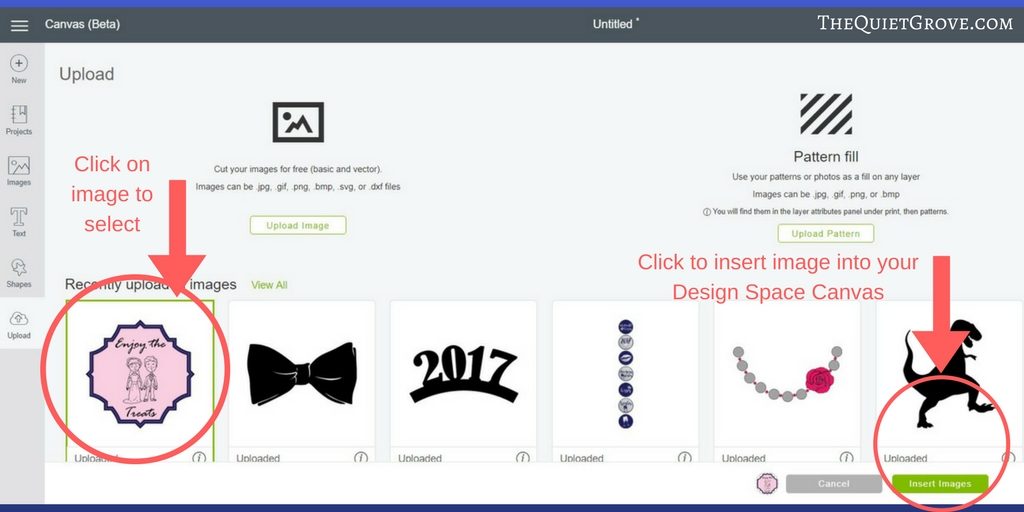
Isn't that so easy?!? Now you know how to upload custom images to use in Design Space the sky is the limit to what you can make with your Cricut Crafting machine! **BTW in case you didn't know I have a bunch of free SVG cut files and PNG images available on my site for you to use with your Cricut.

Do you have a question of how to do something on/with your Circut Explore Air 2 (or other Cricut Crafting machine)? If so let me know in the comments and I can do a tutorial on it! I also have a new Youtube channel where I will be doing regular Tutorials and DIYs for Cricut (as well as other topics like travel, family, food and more come check me out)
If you liked this post you might also like these: (click on the photo to go to the link)


I use sewing patterns. I sew one particular item all the time.
Can you somehow get that pattern into the Cricut machine and it will cut my sewing pattern?
I dint use my Cricut maker for sewing a lot personally. But I have uploaded many a design file for my Cricut to use. I would think the most important thing to do after uploading your design would be to delineate which parts of the pattern need to be cut and which parts would want to be drawn on the fabric with your fabric pen.